Note: Voyager's built-in Video app is on by default on Mac. On Windows, turn it on in Settings first.
The wave works. The camera move works. Then someone asks for a different character.
Starting over risks losing the performance you liked. AI video character replacement gives you another option: use the finished shot as a motion reference, supply the new character, and check what survives. That matters for a mascot refresh, a pitch with several casting directions, or a short story whose design changes after animation.
We tried it twice. First, a 15-second drone orbit around a woman on a windswept moor, recast as an armored rider with Seedance 2.5 inside Voyager. Second, a felt puppet scene recast with fal Recast, then cut back into an edited film.
Description / transcript
A drone circles a woman on a windswept moor at dusk. A white line wipes across the frame, revealing an armored rider with platinum hair in the same pose. The line holds through her face, then sweeps away to leave the recast as the camera rises over a valley.
Recast a moving camera shot with Seedance 2.5
A slow orbit is a hard test for character replacement. The camera sees the subject from the side, the front and behind, and wind keeps her hair and clothes moving the whole time. If the replacement only holds up from one angle, an orbit shows it.
We started from a single still and a front-and-back character sheet.
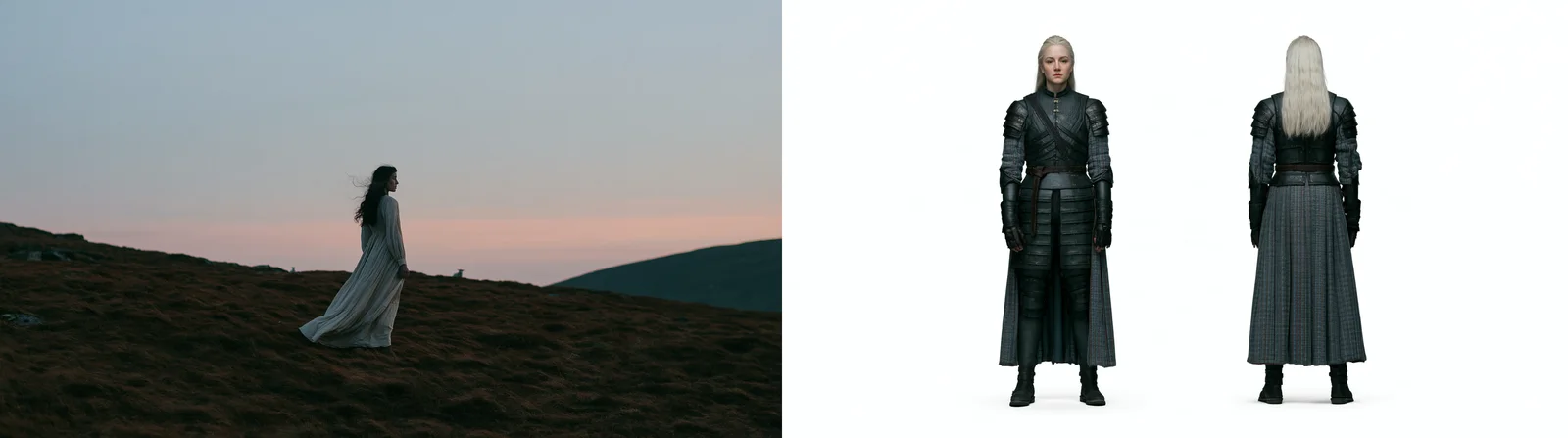
In Voyager, we attached the still and asked for the shot in plain words:
Using Seedance, let's create a 1080 video of this like a dramatic drone shot revolving around the character and showing the scenery. The wind is blowing heavily and moving the main character's hair and clothes.
Voyager wrote the generation prompt as timed beats: glide in and begin the arc (0 to 4 seconds), pass to her front (4 to 8), go behind her shoulder (8 to 11), then rise and pull back over the hills (11 to 15). It also asked for wind, flapping fabric and rustling grass with no music. Seedance 2.5 image-to-video returned a 15-second 1080p take from that prompt. It invented a river valley for the ending that wasn't in the still. That was worth keeping, but check for additions like this before you build on a take.
Then we attached the character sheet and opened the Recast characters technique:
Keep everything else the same in the orbit video but replace the character with the one attached. The hair and parts of the cloth in the armor should be flowing in the wind. Use Seedance 2.5.
Voyager used Seedance 2.5's editing mode, with the orbit take as the source video and the character sheet as the reference image. The prompt it sent follows the same split as any good recast prompt: describe who changes, then list what must stay. A reusable version:
@Video1 is the source shot. @Image1 is a character sheet: use it only for her identity, hair and costume, not its background or framing.
Strictly edit @Video1: replace the woman in the pale dress with the character from @Image1 for the whole shot, one person only. Keep the camera movement, timing, framing, her pose and head turns, the landscape, the background animals and the lighting of @Video1 unchanged.
The wind keeps blowing from the same direction: her long hair and the loose cloth of her coat stream and flap, while the leather armor plates stay rigid.
Keep her face, hair colour and costume consistent from first frame to last. No text, no music.
Saying which materials move matters. Without “armor plates stay rigid”, a model asked for strong wind may let everything flutter.
The recast kept the orbit's camera path and timing frame for frame: both takes are 361 frames at 24 fps, and the sheep, the close-up and the rise over the valley all line up. The platinum hair whips across the frame in the close-up, the wool skirt billows and the pauldrons and gauntlets hold their shape. The differences from the character sheet were small: her hair was loose instead of braided at the crown, and the brown belt nearly disappeared in the dusk light.
Editing mode can carry over parts of the original actor, especially hair. If dark hair or the old face shows through, restyle the first frame with the new character as an image edit, then generate from that frame instead.
Only use a character sheet you have the rights to. If it shows a real person, you need their consent to use their likeness.
Replace a character with fal Recast
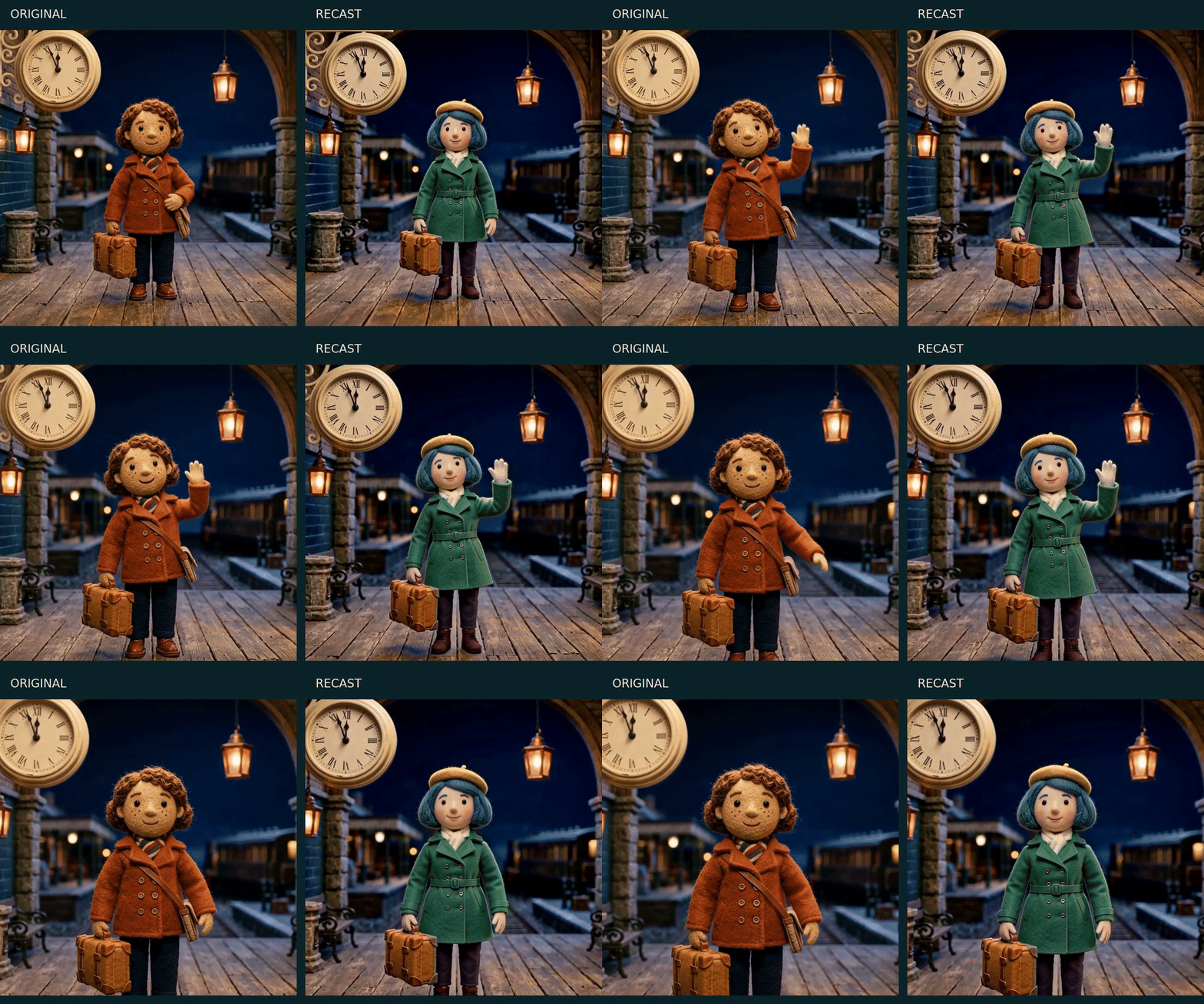
We made a felt courier at a midnight station, then asked fal Recast to change her hair and outfit. Here's the original beside the replacement.
fal announced Recast on October 1. It uses H3 Max and accepts a source video plus reference images. Its promise is to preserve the performance, camera and shot structure while changing who's on screen. That's the promise to test, not something to assume from a good first frame.
Start with a short clip where the subject is visible and the gesture reads clearly. Our source is an AI-generated puppet scene, made from a Nano Banana 2 still and animated with H3 Max. The replacement is another original generated puppet, shown against a plain background.
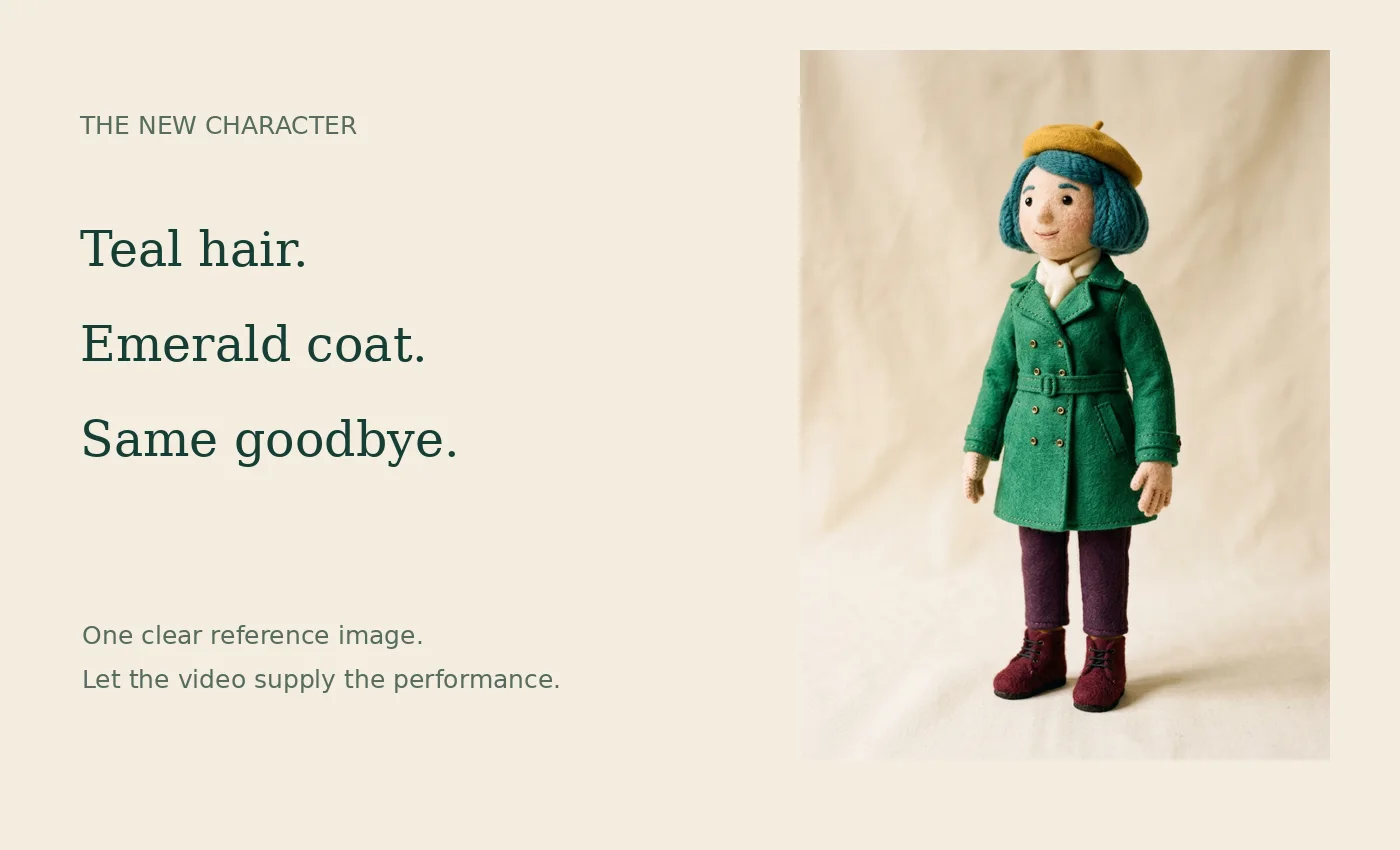
Upload the original clip as Video URL and the replacement image under Reference Image URLs in the Recast playground. We used 1080P and this prompt:
Replace the single felt courier with the felt woman from the reference image: teal bob haircut, mustard beret, emerald coat, ivory scarf, plum trousers, burgundy boots. Preserve her waving performance, her original ochre suitcase, the miniature railway station, warm lighting, camera movement and shot timing. Keep the handcrafted felt stop-motion style. No new text or characters.
Notice the split: name the character details that change, then name the performance and objects that matter. A vague request to “make another version” gives the model less guidance about what you already like.
Recast currently accepts videos from 5 to 30 seconds, with each shot no longer than 15 seconds. At the listed rates, five seconds costs $1.50 at 768p or $2.25 at 1080p, excluding source generation. API documentation
Check the performance, not just the new face
The new puppet kept her teal hair, beret and green coat through the shot. The station and suitcase remained recognizable, and both videos contained 124 frames at 24 fps.
But the performance was not frame-exact: the replacement held her raised hand longer. The small shoulder bag also disappeared. For this quiet goodbye, the new take works; for a gesture timed to a musical hit or a continuity-critical prop, those differences would matter.
Scrub source and result at matching times. Check the raised hand, the suitcase handle, the subject's outline and a fixed background feature. Then check duration and the ending. A convincing portrait is not enough if the hand arrives late or the scene changes around it.
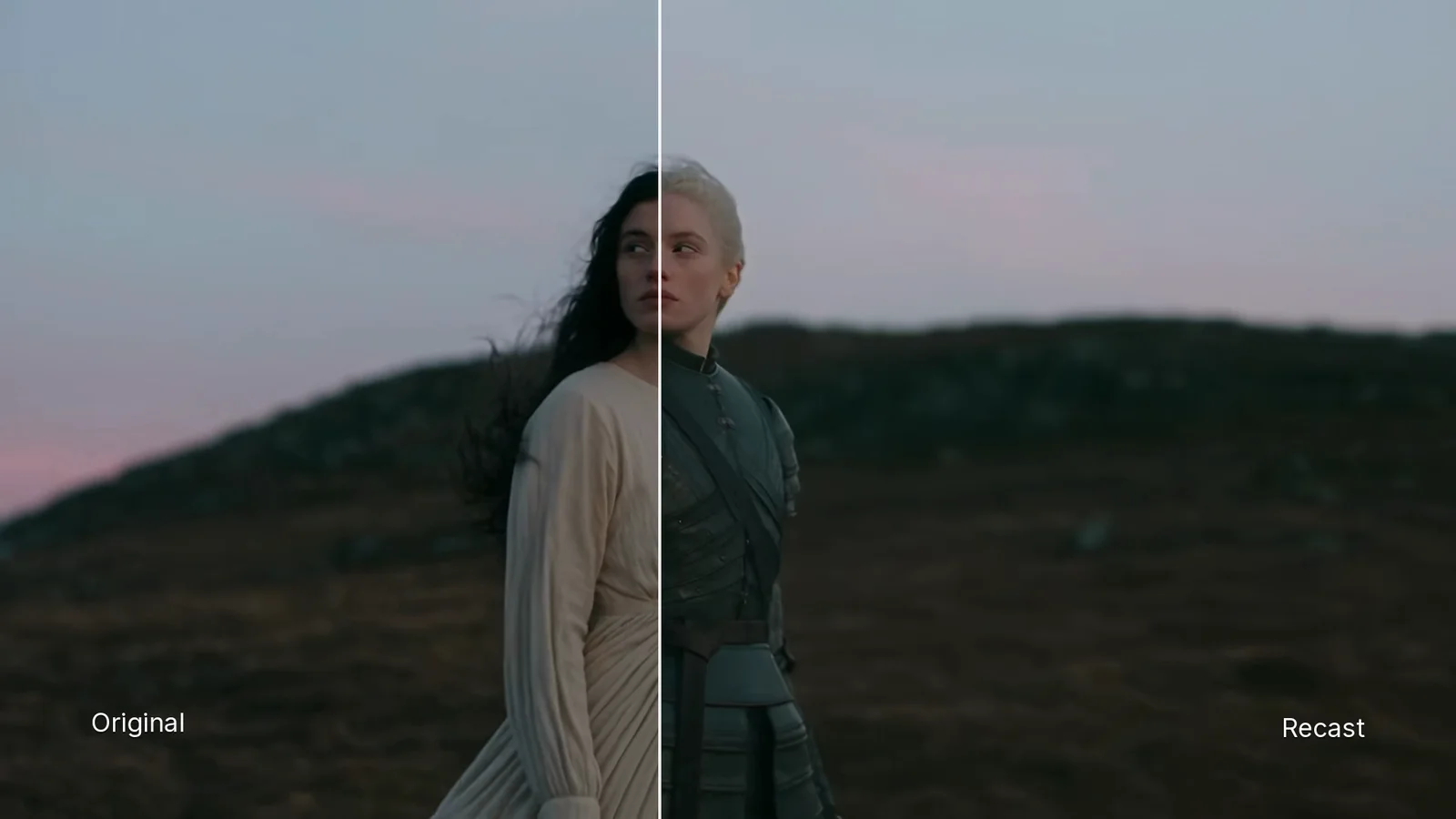
When the two takes line up frame for frame, a comparison is the fastest way to check them. We asked Voyager to put the original and the recast on either side of a line, then to wipe between them. It composed every version from the two existing takes, so no new generation was needed. After a few rounds, the version above starts on the original, wipes quickly to the recast, holds the line still through her face as the camera comes round, and finishes with one eased wipe to the recast:
Make a wipe video from the original and the recast. Wipe quickly to the recast first, then come back to a split that runs right through her face for a while, then wipe to the recast before it ends. Keep the line still during the split, with Original and Recast labels inside the title-safe area.
A line that tracked her face frame by frame looked jittery. Holding it still, then tweening once, read better.
Keep titles, logos and subtitles outside the video you send to the model. They are exact design elements, and you can preserve them in your editor instead of asking a generator to redraw them.
Keep the approved edit in Voyager
Once the new shot works, the next job is putting it into the existing deliverable. We used Voyager's native Video engine to keep the title overlay, original ambience and closing card on separate timeline clips.
Description / transcript
The green-coated courier waves. The Last Train title appears over the shot. The film ends on a card reading A different face. The same goodbye.
Replace the performance clip in last-train-original.vvideo with recast.mp4. Keep its five-second source range, the title overlay, original audio and closing card unchanged. Save the original version. Render the revised seven-second film and show the timeline diff so I can verify what changed.
Description / transcript
The actual Voyager desktop app shows the source replacement summary and plays the revised seven-second film, including its title and closing card.
This is a different operation from asking a model for another video. The model supplies new pixels; the editable timeline controls the cut. Voyager can perform the source replacement, render the revision and inspect the same project in one conversation. The reusable project is the advantage: the next character doesn't require reconstructing the title timing and ending.
The native timeline diff showed one changed media source. The title and end-card clips retained their positions, and the rendered audio mixes were identical.
Download both clips, exact prompts and the editable video project. Keep the folder together so the project can find its media. For a related way to protect exact design elements, see our editable poster animation tutorial.
Change the choice you actually mean to change
Use recasting when the performance is already right and the design is still negotiable. Choose a clear reference, inspect the motion, and keep the precise parts of the deliverable in an editable timeline. You can explore another character without reopening every decision that made the first film work.
Technique
Make your own in Voyager
Opens a new chat with “Recast characters” attached and the steps from this post. Nothing runs until you send it.
Needs Voyager 2026.10.17-0 or later.